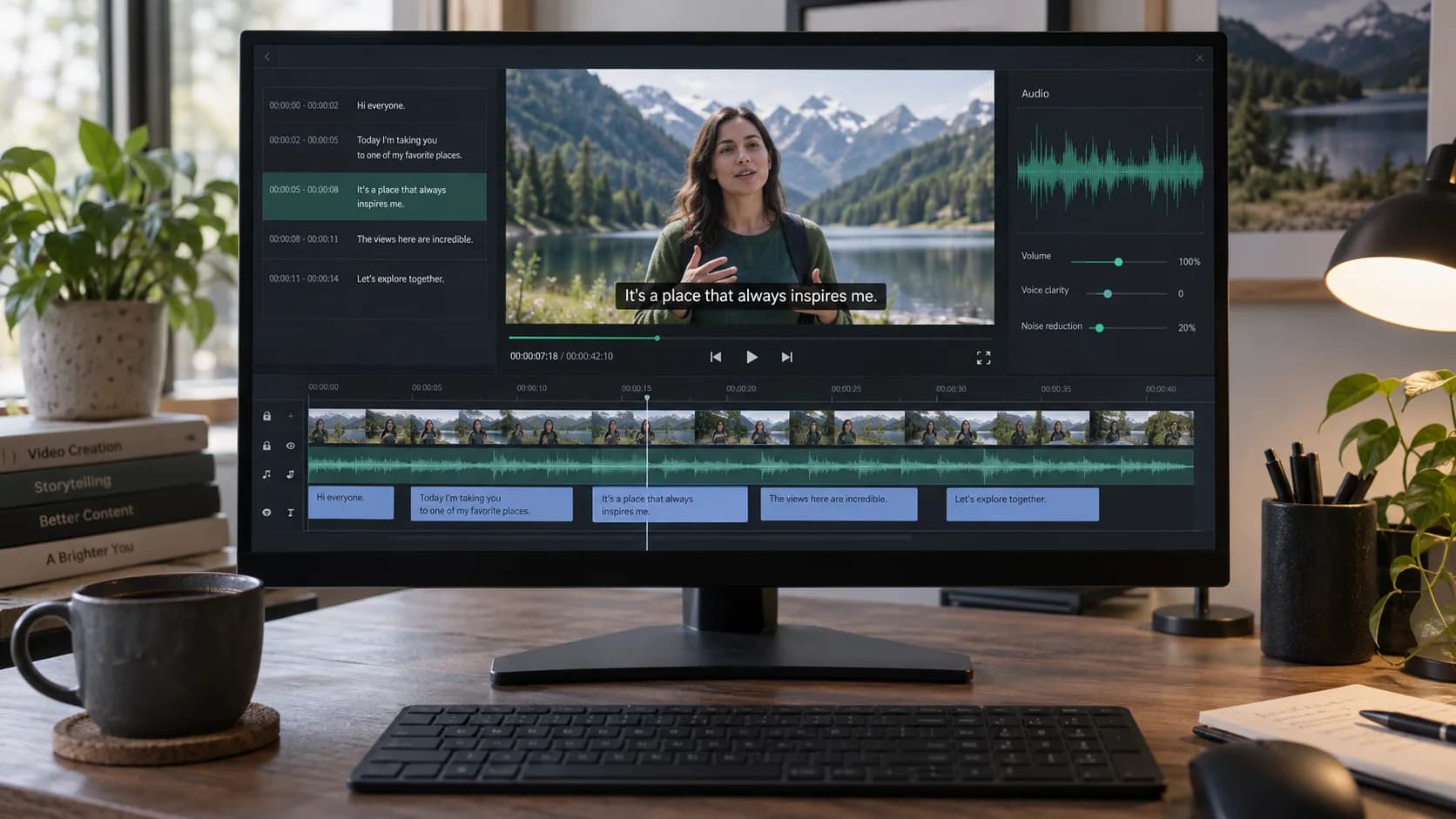
Video transcription and subtitle creation start from the same source: the spoken audio track. The difference comes after recognition. A readable transcript can use long paragraphs; subtitles need short, well-timed lines that viewers can follow while watching the picture.
This guide covers the shared workflow and the extra checks worth making before an SRT file reaches an editor or publishing platform.
Key takeaways
- Use the final video edit whenever possible.
- Check timing at cuts, pauses, and rapid exchanges.
- Break subtitle lines by meaning, not only by character count.
- Keep TXT and SRT copies for different downstream jobs.
1. Start with the right video version
Transcribing a rough cut creates avoidable work if scenes are removed or moved later. Use the final edit, or at least a locked dialogue track, so subtitle timings remain useful.
If the video contains music and effects, make sure speech is still clear. A loud soundtrack can hide word endings even when the dialogue seems understandable to a person.
2. Generate the timed transcript
- 1
Upload the video
Choose MP4, MOV, WebM, or another supported media format.
- 2
Set the spoken language
Choose the language heard in the source, not the language you plan to translate into later.
- 3
Generate subtitles
Keep timestamps so every segment remains tied to the video timeline.
3. Edit for reading on screen
Correct recognition first, then improve the subtitle breaks. Keep names and short phrases together. Avoid ending a line after a preposition or separating a verb from the words that complete it.
Play through scene changes and fast dialogue. A technically correct timestamp can still feel late if the subtitle appears after the speaker is already visible and talking.
If the edit changes after subtitles are generated, update timing from the first changed cut onward instead of fixing isolated lines at random.
4. Translate the checked subtitle track
Translate after the source-language corrections are finished. The translated segments retain their timestamps and speaker labels, which makes it easier to compare both versions and keeps the subtitle track aligned with the picture.
A translated subtitle track is different from full video translation. It changes the written captions; it does not replace the spoken audio with a dubbed voice. Use video translation when the final deliverable also needs translated speech.
- Translated SRT for a target-language audience.
- Bilingual SRT when viewers need both languages on screen.
- A fluent review for names, idioms, line length, and reading speed.
5. Pick the right file
- SRT is widely accepted by editors and video platforms.
- Bilingual SRT contains source and translated text in each timed cue.
- VTT keeps the original transcript for web playback.
- TXT is useful for descriptions, articles, and internal review.
- Keep the source project so corrections can be exported again.
Frequently asked questions
Can an MP4 video be converted directly to text?
Yes. The audio track can be transcribed without extracting it manually first.
What is the difference between SRT and VTT?
Both contain timed captions. SRT is common in editing and distribution, while VTT is native to HTML5 web video and supports extra cue features.
Should subtitles match the transcript word for word?
They should preserve meaning, but subtitle breaks and light cleanup may be needed so viewers can read comfortably while watching.