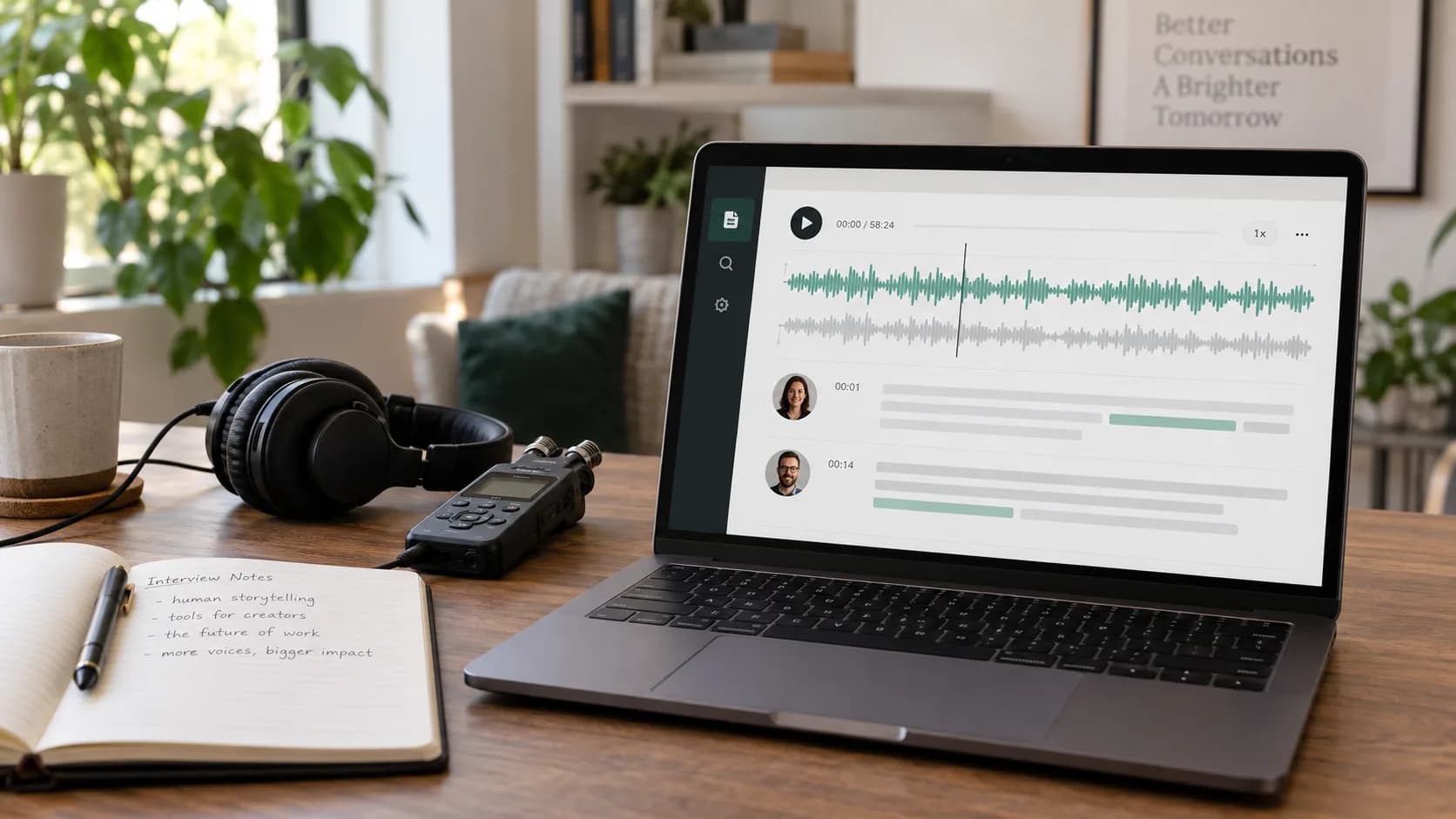
What you will achieve
An editable transcript with timestamps and optional speaker labels, ready to download or translate.
Step-by-step
- 1
Open AI Transcription
Open the Vimorph workbench and choose AI Transcription.
- 2
Add the source file
Upload the original audio or video and confirm its name and duration.
Use the clearest original recording rather than a copy compressed by a messaging app.
- 3
Choose recognition settings
Select the spoken language when known. Turn on speaker recognition for meetings and interviews, but leave it off for a single narrator.
- 4
Start the transcription
Submit the task. Longer files continue in the background and remain available in transcription history.
- 5
Review and export
Check names, numbers, terms and speaker labels, then export TXT, SRT or VTT.
Frequently asked questions
Do I need to keep the page open?
No. After upload, processing continues in the background and the task can be reopened from transcription history.
When should I enable speaker recognition?
Use it for conversations with multiple people. A single-speaker recording usually does not need it.
Try the workflow now
The workbench opens the right tool so you can follow the steps while completing the task.
Start a transcription