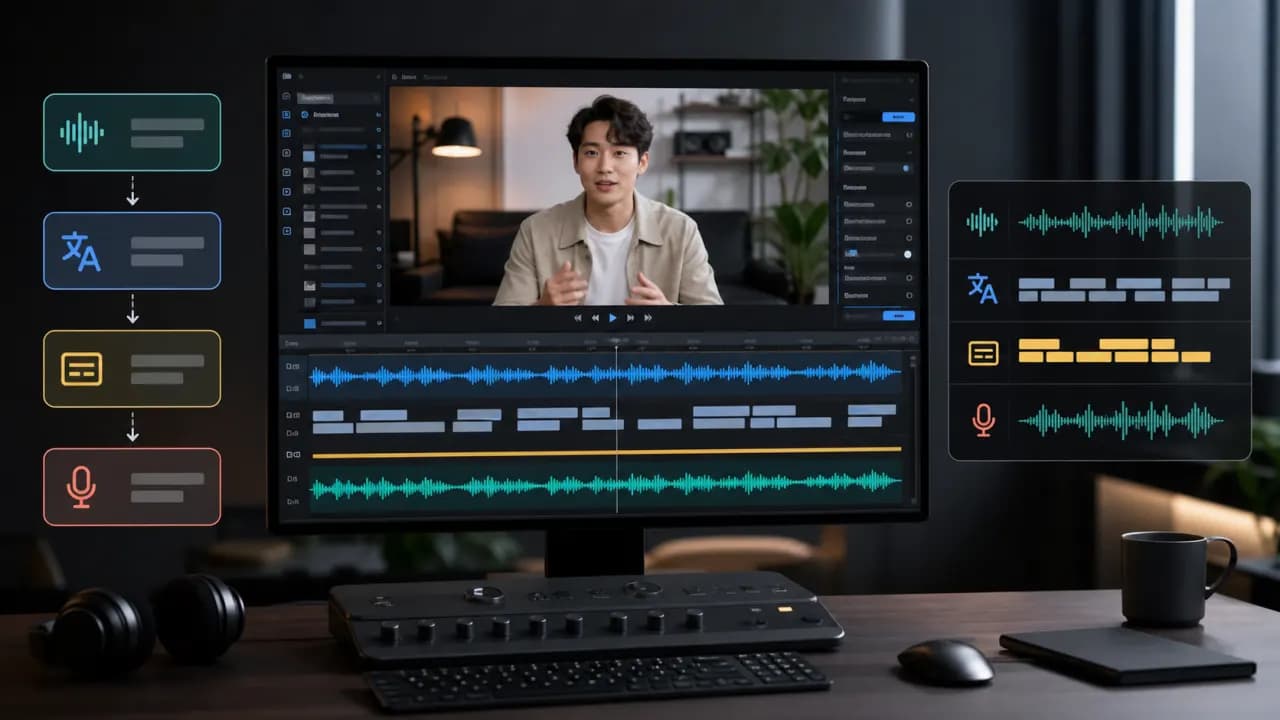
What you will achieve
A translated video with editable subtitles and AI dubbing, ready for review and export.
Step-by-step
- 1
Open Video Translation
Open the Vimorph workbench and choose Video Translation. The source can be a new local file or a video already stored in your asset library.
- 2
Add the source video
Upload a video or choose one from the asset library. Check the preview, duration and file name before continuing.
Start with a short video when testing a new language or voice.
- 3
Choose source and target languages
Use automatic source detection when you are unsure. Select one target language for the simplest first run.
- 4
Create the translation task
Submit the task and keep the page open while the source is uploaded. Processing continues after the upload finishes.
- 5
Review and export
Open the task when it reaches Needs Review. Correct wording, timing or pronunciation, then render and download the final video.
Frequently asked questions
Which video formats are supported?
The current upload flow accepts MP4, MOV and WebM videos up to 1 GB and 60 minutes.
Can I edit the generated subtitles?
Yes. Open the task editor to update subtitle text, timing and visual style before final rendering.
Try the workflow now
The workbench opens the right tool so you can follow the steps while completing the task.
Translate a video